
We get called in to clean up hacked WordPress sites most weeks. And in almost every case, the site wasn’t compromised by anything clever. It was compromised by a plugin nobody updated for eight months, a password recycled from a data breach, or an admin account called “admin” with no second factor. Table stakes stuff, skipped.
This guide walks through the WordPress security basics that stop 95% of the attacks we see. It’s a working checklist you can genuinely finish in one afternoon, and none of it costs much beyond your time. Nothing here is premium or optional. If your site is missing any of it, you’re leaving the front door open.
Why “boring” attacks own most WordPress sites
Before the checklist, a word on threat model. When people picture a WordPress hack, they picture a hoodie and a terminal. The reality is duller and more automated. Botnets spray login pages with credential stuffing lists lifted from other breaches. Vulnerability scanners hammer known plugin exploits within hours of a CVE being published. WooCommerce checkout skimmers get injected by attackers who bought admin credentials on a forum for £4.
So the security basics matter more than any single clever defence. Get the fundamentals right and you become uninteresting to the automated stuff, which is the vast majority of it.
Here’s the afternoon plan.
1. Kill the “admin” username. Enforce strong ones for everyone else
If your site has a user called admin, administrator, wpadmin or your business name, delete it today. Not disable. Delete.
Every brute force script on the internet tries those usernames first. If the account doesn’t exist, the attempts fail before they even reach the password guess. To do it cleanly:
- Create a new administrator account with a non-obvious username (not your first name, not “editor2024”).
- Log in as that account.
- Delete the old
adminuser and reassign its content to the new account when prompted.
While you’re there, audit the full user list under Users, All Users. Every dormant contributor from a freelancer three years ago is a live attack surface. Delete anyone who doesn’t currently need access. Force a password reset on anyone who stays.
For passwords, don’t try to be clever. A random 20+ character string from a password manager is better than any clever pattern a human can remember. Bitwarden, 1Password, KeePass, pick one and enforce it as a team policy.
2. Turn on 2FA for every admin (and editor)
Two-factor authentication is the single biggest security upgrade you can make in five minutes. It defeats credential stuffing outright. Even if an attacker has your password from a leaked database, they can’t log in without the second factor.
For most WordPress sites, the free Two Factor plugin (maintained by contributors from the WordPress core team) is the sensible default. It supports:
- Time-based one-time passwords (TOTP) via authenticator apps like Aegis, 1Password or Google Authenticator.
- FIDO2 security keys (YubiKey, Titan) if you want the strongest option.
- Backup codes for recovery.
Enforce it on every user with a role of Editor or above. Contributors and authors can publish content too, so include them if they have login access at all. Subscribers can usually be left alone unless your site handles anything sensitive.
One important note: don’t use SMS as your second factor if you can avoid it. SIM-swapping is real, and it’s specifically used against people who matter (business owners, finance teams). Authenticator apps or hardware keys only.
3. Audit every plugin and theme, then cut the dead weight
Open Plugins, Installed Plugins and look honestly at the list. For each one, ask:
- Do we actually use this? If not, deactivate and delete. Deactivated plugins still sit in the filesystem and can still be exploited.
- Was it updated in the last three months? Check the “Last updated” date on the WordPress.org listing. Anything untouched for over a year is a red flag. Abandoned plugins are exactly how the wpDataTables and File Manager style disasters happen.
- How many active installs? A plugin with 200 installs and no changelog since 2022 is a completely different risk profile from one with 500,000 installs and a monthly release cadence.
- Is the vendor still there? If the plugin was bought by a private equity firm and then the changelog went quiet, that’s the pattern that precedes the “supply chain attack via legitimate update” stories you read about.
Same drill for themes. WordPress lets you have multiple themes installed, but you can only run one at a time. Delete the rest, including the default Twenty-Twenty-Whatever themes you don’t use. Fewer files on disk means fewer things to exploit.
The old rule holds: every plugin is a potential vulnerability. Ten well-maintained plugins are safer than thirty half-maintained ones, no matter what those extra twenty do.
4. Disable the file editor in wp-config.php
By default, WordPress lets administrators edit plugin and theme PHP files directly from the dashboard, under Appearance, Theme File Editor and Plugins, Plugin File Editor. This is a gift to anyone who steals an admin session. They can paste a web shell into your functions.php in ten seconds, and now they own the server, not just the site.
Turn it off. Open wp-config.php and add this line anywhere above the /* That's all, stop editing! */ comment:
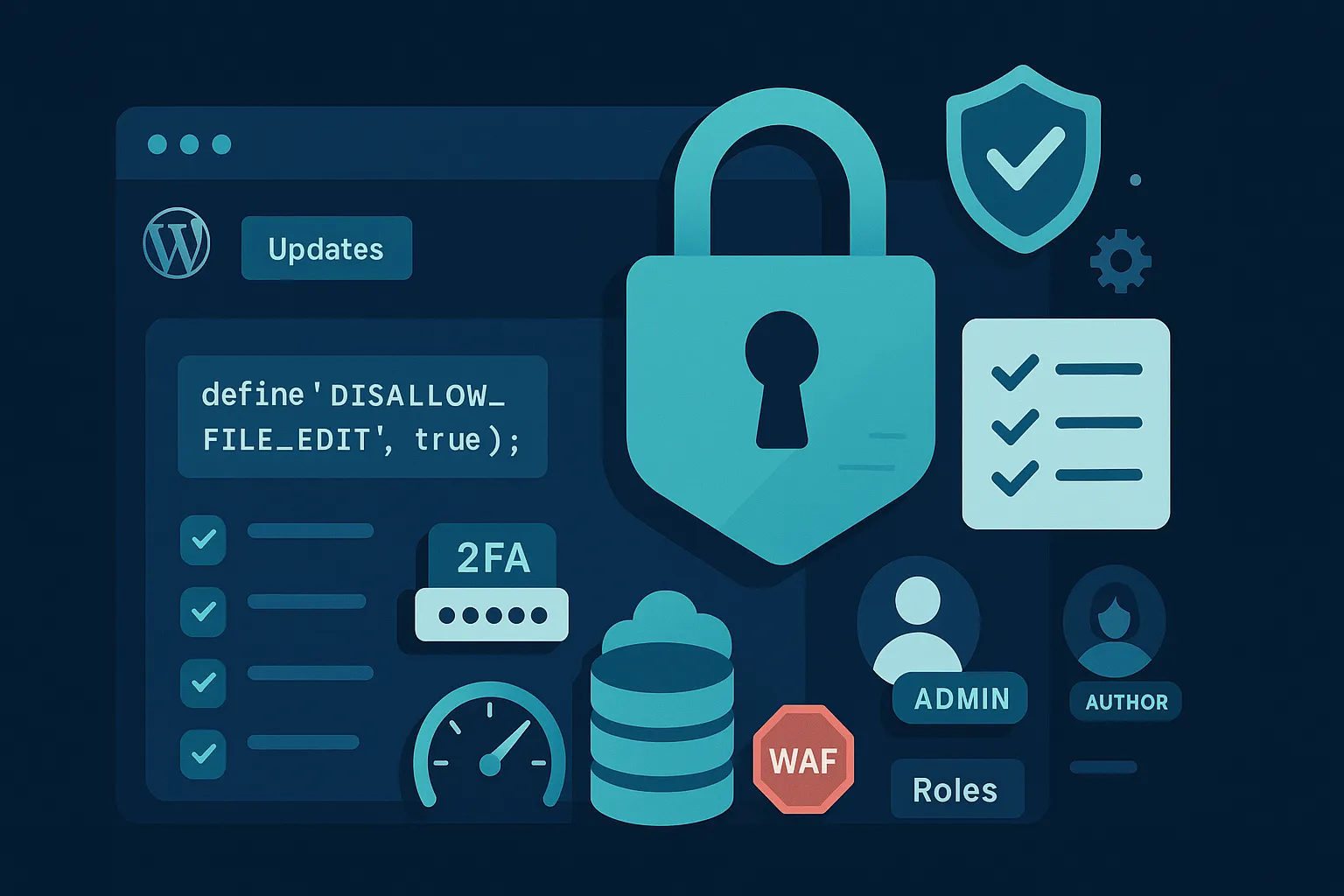
define( 'DISALLOW_FILE_EDIT', true );Save. The editor menus disappear immediately. Your developers can still push code through Git, SFTP or your deployment pipeline (which is how they should have been doing it anyway). Nobody legitimate loses anything.
While you’re in wp-config.php, add this too:
define( 'DISALLOW_FILE_MODS', true );That one’s more aggressive. It also blocks plugin and theme installations and updates from the dashboard. Only turn it on if you’re running a CI/CD pipeline that deploys plugin updates, otherwise you’ll lock yourself out of routine patching. For most small teams, DISALLOW_FILE_EDIT alone is the right balance.
5. Harden the login page
Your /wp-login.php and /wp-admin/ URLs receive tens of thousands of automated login attempts a month, even on tiny sites nobody’s heard of. You want to make that painful. Two approaches, pick one or both:
Rate limiting. Install a plugin like Limit Login Attempts Reloaded, or use rules at your web application firewall. Configure it to lock out an IP after four failed attempts, with a 20-minute cooldown that doubles after repeated lockouts. Log the attempts. Real users almost never lock themselves out four times in a row. Attackers do it constantly.
Hidden login URL. Plugins like WPS Hide Login let you rename /wp-login.php to something only your team knows. It’s security through obscurity, which isn’t a real defence on its own, but it’s remarkable how much bot traffic it eliminates in practice. Combined with rate limiting, it’s a good pair.
Bonus move: block direct access to /xmlrpc.php (see step 9), which is another popular brute-force target that bypasses login-page limits.
6. Turn on automatic updates for core and plugins
WordPress supports automatic updates for the core, plugins and themes. Turn them on. The days of “we’ll update carefully in a staging environment first” being a reasonable policy for security patches are over. The gap between a vulnerability being disclosed and mass exploitation is now hours, not weeks.
For core, this is on by default for minor releases. To enable major releases, add to wp-config.php:
define( 'WP_AUTO_UPDATE_CORE', true );For plugins, go to Plugins, Installed Plugins and click “Enable auto-updates” on every plugin you trust. For paid plugins that require a licence key (WooCommerce extensions, ACF Pro, etc.), make sure your licences are current so updates actually download.
The counterargument you’ll hear: “automatic updates could break the site.” True. They occasionally do. But the risk calculation is straightforward: an hour of downtime from a bad plugin update happens rarely and is quickly fixable. A compromised site injecting card skimmers into your checkout is neither.
If you’re genuinely worried about breakage on a high-value site, the fix is a proper staging environment with a scheduled sync, not disabling security patches. That’s what our maintenance plans do for the sites we host.
7. Set up real, off-site backups
Backups that live on the same server as your website are not backups. If an attacker gets shell access, the first thing they do is wipe your backup directory. Same story with ransomware.
Real backups have three properties:
- Automated. Nobody remembers to click a button every week. UpdraftPlus, BackupBuddy, or your host’s built-in scheduler, whatever, but it runs itself.
- Off-site. The backup ends up somewhere your WordPress admin credentials cannot reach. S3, Backblaze B2, Google Drive with a dedicated service account, or your host’s off-site backup service.
- Tested. At least once, restore a backup to a staging environment and confirm the site actually comes back. A backup you’ve never restored is a hope, not a plan.
The three-two-one rule is still the standard: three copies, two different storage types, one off-site. For a small business WordPress site, that usually looks like: the live site, a daily backup on the hosting server, and a weekly backup pushed to S3 or B2.
If your backup destination requires a login, make sure that login has 2FA on it too. Getting your backups ransomed because someone phished the shared “backups@yourcompany” Gmail account is a genuinely miserable way to spend a Tuesday.
8. Get an SSL certificate (yes, still worth stating)
At this point in 2026 there’s no excuse for a WordPress site running on plain HTTP. Certificates are free (Let’s Encrypt), most hosts issue and renew them automatically, and browsers actively shame HTTP sites with warnings.
Beyond the browser warning, HTTPS matters because without it:
- Your login credentials cross the network in plaintext. Anyone on the same coffee shop Wi-Fi as your marketing manager can grab them.
- Attackers on the network path can inject content into your pages (see: any airport Wi-Fi you’ve used).
- Google ranks you lower.
Check your certificate is actually valid, chain is complete, and it auto-renews. SSL Labs’ free test at ssllabs.com/ssltest will grade you. Aim for A or A+. If you’re seeing B or below, your host or your config needs attention.
Force HTTPS site-wide in Settings, General by updating both WordPress Address and Site Address to https://. Add a redirect at the server level so any HTTP request gets bounced to HTTPS. Most hosts do this by default now, but check.
9. Disable XML-RPC unless you actually use it
The /xmlrpc.php endpoint is a legacy WordPress feature that lets external services (like the old WordPress mobile apps, Jetpack, and various publishing tools) talk to your site. It’s also famously abused for two attacks:
- Amplified brute force. The
system.multicallmethod lets an attacker try hundreds of username-password combinations in a single HTTP request. That bypasses rate-limiting plugins that count requests, not attempts. - Pingback DDoS. Attackers use thousands of WordPress sites’ XML-RPC endpoints as reflectors to DDoS a third-party target.
If you don’t need it, kill it. Most modern WordPress setups don’t. You need it if you’re actively using Jetpack, the mobile WordPress app, or a third-party integration that specifically requires XML-RPC (rare in 2026, since the REST API replaced most of it).
The cleanest way is at the server level. In Apache, add to .htaccess:
<Files xmlrpc.php>
    Order Deny,Allow
    Deny from all
</Files>
In Nginx:
location = /xmlrpc.php {
    deny all;
}
Alternatively, use a plugin like Disable XML-RPC if you can’t touch server config. Test by hitting yoursite.com/xmlrpc.php in a browser; you should get a 403 rather than the usual “XML-RPC server accepts POST requests only” message.
10. Fix your file permissions and secrets
Two quick server-side jobs, both usually skipped.
File permissions. WordPress files should be 644, directories should be 755, and wp-config.php specifically should be 600 or 640 so it’s not world-readable. Your database credentials live in that file. Check with SFTP or SSH.
Rotate your secret keys. The wp-config.php file has eight secret keys and salts (AUTH_KEY, SECURE_AUTH_KEY, etc.) that sign your session cookies. If they were generated automatically by your installer years ago, they’re fine, but if you inherited a site with visibly obvious defaults, or if you suspect a past compromise, rotate them. Grab a fresh set from api.wordpress.org/secret-key/1.1/salt/ and paste them in. Every user gets logged out immediately, which is the point.
11. Consider a web application firewall
A web application firewall (WAF) sits between the internet and your site, blocking malicious requests before they hit WordPress. It’s the layer that catches novel attacks the built-in stuff misses. Two ways to get one:
- Cloud WAF (Cloudflare, Sucuri): traffic routes through their network first. They block SQL injection attempts, malicious bots, known-bad IPs and specific WordPress attack patterns. Cloudflare’s free tier already includes basic rules; the £15-a-month Pro plan adds the WordPress-specific ruleset. For most small sites this is the fastest win.
- Host-level WAF: some managed WordPress hosts include ModSecurity or an equivalent at their edge. Ask yours what they run.
A WAF isn’t a substitute for the other steps in this list, but it’s a solid extra layer. Especially useful for catching plugin vulnerabilities in the window between disclosure and you managing to patch.
The one-afternoon checklist
Print this. Work through it. Tick each one:
- Delete any user called “admin”. Force strong passwords via manager.
- Enable 2FA (TOTP or hardware key) for every Editor and above.
- Audit plugins, delete unused and stale ones. Same for themes.
- Add
DISALLOW_FILE_EDITtowp-config.php. - Install a login rate-limiter and (optionally) hide the login URL.
- Turn on automatic updates for core and every trusted plugin.
- Set up automated off-site backups and test a restore.
- Verify HTTPS is enforced site-wide and the certificate is A-grade.
- Block XML-RPC unless you actively need it.
- Set correct file permissions and rotate secret keys if inherited.
- Put a WAF in front of the site (Cloudflare’s a good starting point).
If you get through all eleven in an afternoon, you’ve moved your WordPress site from “trivially compromised by any competent bot” to “not worth the effort” for the automated stuff. Which is 95% of the threat.
Where Codesky fits in
We build custom WordPress sites and run managed hosting from Grantham, Lincolnshire. Every site we host ships with most of the above baked in from day one: 2FA on all admin accounts, hardened wp-config, automated off-site backups, a WAF at the edge, and a real update cadence. Not because it’s a premium tier, but because we think it should be table stakes.
If your site’s on someone else’s hosting and you’re not sure whether any of this is in place, we can audit it. That usually takes a couple of hours and comes back as a written report you can act on yourself or ask us to fix. Either way, no lock-in.
Give us a ring on 0800 699 0037 or email hello@codesky.co.uk.
FAQs
How often should I update WordPress plugins? As soon as updates are released, ideally through automatic updates. Waiting to “batch up” updates monthly used to be common practice; it’s now a genuine security risk because the window between vulnerability disclosure and mass exploitation is often less than 24 hours.
Is a security plugin like Wordfence or Sucuri enough on its own? No single plugin replaces the fundamentals in this checklist. Wordfence and Sucuri are useful additions (both include WAF, malware scanning and file integrity monitoring), but a security plugin on a site with weak passwords, no 2FA and outdated plugins is polishing the door handle while the door’s off its hinges. Fix the basics first.
Do I still need XML-RPC in 2026? Almost certainly not. The REST API introduced in WordPress 4.7 replaced it for most integrations. The main remaining use cases are older Jetpack features and a handful of publishing tools. Test by disabling it and seeing what breaks. If nothing does, leave it off.
Should I change wp-admin to something else for security? Renaming the admin URL (via a plugin like WPS Hide Login) meaningfully reduces automated login attempts, which reduces server load and log noise. It’s not a real security control on its own (a determined attacker will find the new URL), but combined with 2FA and rate limiting it’s a useful layer.
What’s the difference between a backup and a security snapshot? A backup preserves your data so you can restore after loss or compromise. A security snapshot (or file integrity monitor) records the state of your files so you can detect when something’s changed. You want both. Backups get you back online; snapshots tell you what the attacker touched.
Do I need a WAF if my host already runs one? Depends on how thorough theirs is. Ask your host specifically: do they run ModSecurity or an equivalent, is the WordPress rule set enabled, and can you view the logs. If the answer is vague, add Cloudflare in front regardless. It’s belt-and-braces and doesn’t hurt.