A customer rings to say your website sent them somewhere strange. Or Google has put a red warning page in front of your site. Or your hosting company has emailed about malware. Whatever the first sign, you’re now dealing with a hacked website, and what you do first decides how long it takes to fix and whether it happens again. We clean up sites like this regularly, and this is the process we follow, written so you can follow it too.
How to tell it’s really a hack
The common symptoms:
- Pages or links redirecting visitors to unrelated sites, often gambling, pharmacy or adult content.
- Spam links or foreign-language text on your pages, sometimes visible only in Google’s search results and not on the site itself (search your business name and look at the listing).
- A “deceptive site ahead” or “this site may be hacked” warning in Chrome or in Google Search Console.
- Your hosting company’s malware scanner flagging files.
- New admin users in WordPress that you didn’t create.
- Pages or posts you didn’t publish.
- Email from your domain bouncing or landing in spam, because the server’s been used to send junk.
- The site suddenly slow, crashing or using far more server resources than usual.
To check, search your business name on Google and read your own listings carefully. Look at the site in a private browser window, which sometimes shows what logged-in users don’t see. Log into WordPress and check Users and recent Posts. Check Search Console’s Security Issues section. If two or more of the symptoms above fit, treat it as a hack.
The first hour: do and don’t
Do take a full copy of the site as it stands, files and database, before anything else. You’ll want it for working out what happened, and you’ll want it if a fix goes wrong.
Do change every password: WordPress admin, hosting control panel, FTP or SFTP, the database, your domain registrar, and the email account the site uses. Use long, unique passwords. If any other service shared a password with any of these, change that too.
Do tell your hosting company. They may already know, they may have tools to help, and they’ll want to stop the server being used for spam.
Don’t delete things at random. Deleting the obvious infected file without finding the back door it came with means being hacked again next week.
Don’t restore a backup blindly. If the hack happened before the backup was taken, you’ll restore the infection. Find out when it started first.
Don’t take the site offline unless it’s actively harming visitors. A site that’s down loses you business and doesn’t get you any closer to a fix. If it’s redirecting people to malware, a holding page is justified. Otherwise, keep it up and work fast.
Finding the infection
Most WordPress hacks live in one of a few places: modified core files, injected code at the top or bottom of theme and plugin files, new files hidden in upload folders with innocent names, entries in the database (particularly in options and posts), and scheduled tasks that reinfect the site on a timer. A malware scanner (your host’s, or a security plugin) finds the obvious ones. Finding the rest means comparing core files against a clean copy of the same WordPress version, looking for files modified at odd times, and reading the ones that don’t belong. This is where it stops being a DIY job for most people.
Cleaning it
Replace WordPress core files with clean copies of the same version. Reinstall plugins and themes from their official sources rather than cleaning them by hand. Remove the files that shouldn’t be there. Clean the database entries. Remove the unknown admin users. Check scheduled tasks. Then scan again, from a clean copy, and check the site page by page.
Finding how they got in
This is the step most people skip, and it’s why they get hacked again. The usual routes: a plugin or theme with a known vulnerability that wasn’t updated; a weak or reused admin password; an old installation of something in a forgotten subfolder; a compromised computer with saved FTP details; or the hosting account itself. The server logs usually show the first malicious request if you know when the hack started. Whatever the route, close it: update, remove, change, or move.
Getting Google’s warning lifted
Once the site is clean, go to Search Console’s Security Issues section and request a review. Google re-scans the site and, if it’s clean, lifts the warning, usually within a few days. If your host flagged the site, ask them to re-scan too. If the site was sending spam, check the domain against the common email blocklists and request removal where it’s listed.
Stopping the next one
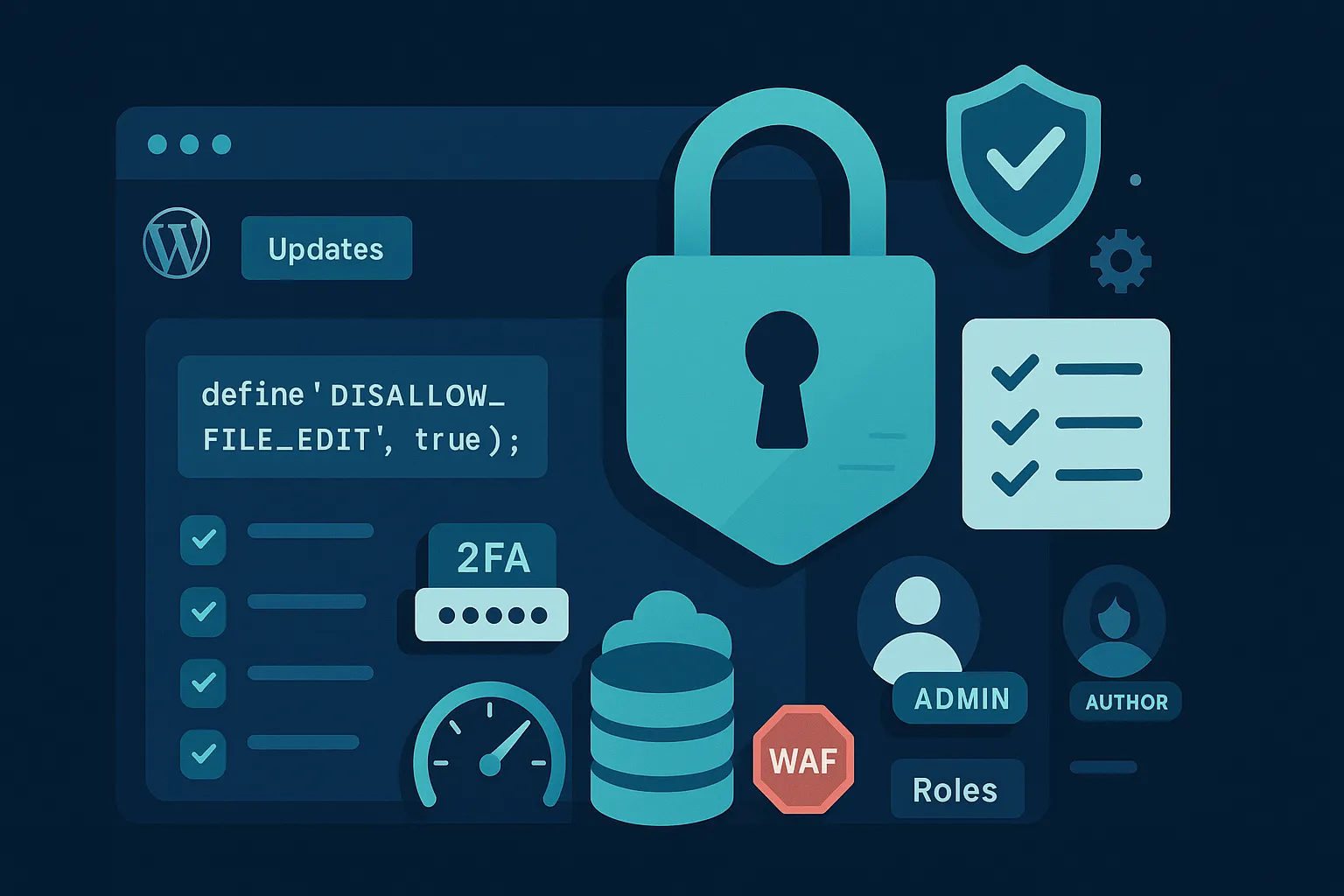
Updates, applied promptly and checked afterwards. Strong, unique passwords and two-factor authentication on admin accounts. Fewer plugins, and only ones that are maintained. Backups taken regularly and kept somewhere other than the server (ours are twice daily, kept for six months). A firewall and malware monitoring on the hosting. And someone whose job it is to do all of that, every month, because the gap between “we’ll get round to updates” and “we’ve been hacked” is usually a few weeks.
When to call for help
If you’re not comfortable in the file system and the database, or if the site is important to your business and you need it fixed today, call someone who does this regularly. A professional clean-up covers everything above, usually without taking the site offline, and ends with the hole closed and the warnings lifted. Ours does; details on our hacked website clean-up page. Ring 0800 699 0037 or email support@codesky.co.uk, and if it’s out of hours our Philippines team picks it up.